Home-Assistant in Kubernetes [Second Part - Bastion SSH]
Build your SSH container for CI
Build your own Bastion-SSH for Deployments from GitHub [Second Part - Bastion]
In this post, I’ll show you how I automated the deployment of my Home Assistant configuration using GitHub Actions, a custom Docker container with SSH and Fail2Ban, and a shared persistent volume. This setup lets me test and update my Home Assistant configuration simply by pushing changes to a GitHub repository.
🚀 What We’re Building
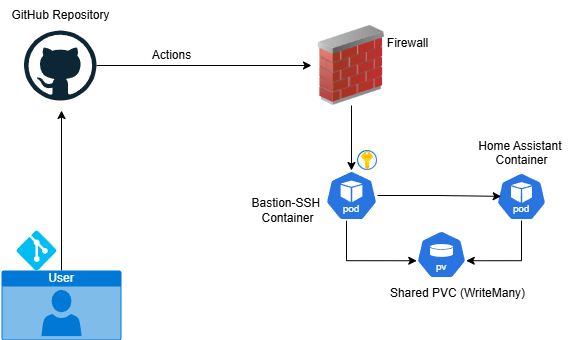
The idea is to create a secure and automated way to update the configuration files of a running Home Assistant instance. Here’s the high-level workflow:
- A GitHub Action is triggered on push.
- It connects via SSH to a secure Docker container.
- This SSH container shares a volume with the Home Assistant container.
- It pulls the latest configuration using
git. - It restarts the Home Assistant container so the changes take effect.
By separating the deployment logic into a dedicated container, we keep things clean and secure.
Important — KubeConfig! You’ll also need a Kubeconfig file with restricted permissions to allow container restarts. Here’s how: Limited Kubeconfig
🧱 The Architecture
We’ll be using two Docker containers:
- SSH + Fail2Ban Container: acts as a secure entry point for GitHub Actions.
- Home Assistant Container: uses the same shared volume for configuration files.
Both containers mount a ReadWriteMany PVC (Persistent Volume Claim), so any changes made by the SSH container are immediately visible to Home Assistant.
1
GitHub Actions ──SSH (w/ Fail2Ban)──▶ Shared Volume (PVC) ◀── Home Assistant Container
🔐 SSH Authentication with GitHub Actions
The connection from GitHub Actions to the SSH container is done using public key authentication. Here’s the setup:
- Generate an SSH key pair.
1
ssh-keygen -t rsa -b 4096 -C "youremail.com"
- Add the public key to
~/.ssh/authorized_keysin the container. - Store the private key as a GitHub repository secret (e.g.,
SSH_PRIVATE_KEY).
This way, GitHub Actions can log in securely without ever exposing a password.
🐳 1 - Build the SSH + Fail2Ban Docker Container
We’ll build a custom Docker container that runs:
- An OpenSSH server for secure access.
- Fail2Ban to block IPs after several failed login attempts.
- Logging for SSH connections.
Here’s the Dockerfile template (fill it in as needed):
1
2
3
4
5
6
7
8
9
10
11
12
13
14
15
16
17
18
19
20
21
22
23
24
25
26
27
28
29
30
31
32
33
34
35
36
37
38
39
40
41
42
43
44
45
46
47
48
49
50
51
52
53
54
55
56
57
58
59
60
61
62
63
64
65
66
67
68
69
70
71
72
73
74
75
76
77
78
79
FROM ubuntu:20.04

ENV DEBIAN_FRONTEND=noninteractive

# Install
RUN apt-get update && apt-get upgrade -y && \
    apt-get install -y \
    nano \
    openssh-server \
    fail2ban \
    curl \
    software-properties-common \
    jq \
    git \
    iptables \
    moreutils

# Kubectl
RUN curl -LO "https://storage.googleapis.com/kubernetes-release/release/$(curl -s https://storage.googleapis.com/kubernetes-release/release/stable.txt)/bin/linux/amd64/kubectl" && \
    chmod +x ./kubectl && mv ./kubectl /usr/local/bin/kubectl
# Create Directories
RUN mkdir -p /var/run/sshd /var/run/fail2ban /var/log && \
    touch /var/log/sshd.log /var/log/sshd-raw.log /var/log/fail2ban.log

# No root only keys
RUN sed -i 's/^#\?PermitRootLogin.*/PermitRootLogin prohibit-password/' /etc/ssh/sshd_config && \
    sed -i 's/^#\?PasswordAuthentication.*/PasswordAuthentication no/' /etc/ssh/sshd_config && \
    sed -i 's/^#\?PubkeyAuthentication.*/PubkeyAuthentication yes/' /etc/ssh/sshd_config && \
    sed -i 's/^#\?AuthorizedKeysFile.*/AuthorizedKeysFile .ssh\/authorized_keys/' /etc/ssh/sshd_config && \
    echo "LogLevel VERBOSE" >> /etc/ssh/sshd_config

# Fail2BAN
RUN echo "[sshd]\n\
enabled = true\n\
filter = sshd-no-ts\n\
port = ssh\n\
logpath = /var/log/sshd.log\n\
backend = polling\n\
maxretry = 3\n\
bantime = 60000\n\
findtime = 600" > /etc/fail2ban/jail.local

# Fail2BAN Regex
RUN printf "%s\n" "[Definition]" \
"failregex = ^.*Failed password for .* from <HOST> port \d+ ssh2" \
"            ^.*Failed publickey for .* from <HOST> port \d+ ssh2" \
"            ^.*ROOT LOGIN REFUSED FROM <HOST> port \d+" \
"            ^.*Invalid user .* from <HOST> port \d+" \
"            ^.*Connection closed by invalid user .* <HOST> port \d+" \
"            ^.*Connection closed by authenticating user .* <HOST> port \d+ \[preauth\]" \
"ignoreregex =" \
> /etc/fail2ban/filter.d/sshd-no-ts.conf

# Entrypoint.sh
RUN printf '%s\n' '#!/bin/bash' \
'echo "==> Starting..."' \
'mkdir -p /var/run/fail2ban' \
'chmod 755 /var/run/fail2ban' \
'touch /var/log/sshd.log /var/log/sshd-raw.log /var/log/fail2ban.log' \
'chmod 644 /var/log/*.log' \
'' \
'echo "==> Starting Fail2Ban..."' \
'fail2ban-client -x start' \
'sleep 1' \
'fail2ban-client status sshd || echo "⚠️  Jail sshd not exist"' \
'' \
'echo "==> Logging..."' \
'tail -F /var/log/sshd-raw.log | ts "%Y-%m-%d %H:%M:%S" >> /var/log/sshd.log &' \
'tail -n0 -F /var/log/sshd.log /var/log/fail2ban.log &' \
'' \
'echo "==> Starting SSHD..."' \
'/usr/sbin/sshd -D -E /var/log/sshd-raw.log' \
> /entrypoint.sh && chmod +x /entrypoint.sh

# PORT
EXPOSE 22

# Entrypoint
CMD ["/entrypoint.sh"]
🐳 2 - Run the SSH + Fail2Ban Docker Container in Kubernetes
Run this container in the same namespace where Home Assistant lives, using three volumes:
- PV for SSH configuration (
bastion-data-pvc) - PV shared with Home Assistant (
home-assistant-pvc) - PV for the Kubeconfig, mounted as a secret (
kubeconfig-secret)
Example:
1
2
3
4
5
6
7
8
9
10
11
12
13
14
15
16
17
18
19
20
21
22
23
24
25
26
27
28
29
30
31
32
33
34
35
36
37
38
39
40
41
42
43
44
45
46
47
48
49
50
51
52
53
54
55
56
57
58
59
60
61
62
63
64
65
66
67
68
69
70
71
72
73
74
75
76
77
78
79
80
81
82
83
84
85
86
apiVersion: v1
kind: PersistentVolumeClaim
metadata:
  name: bastion-data-pvc
  namespace: home-assistant
spec:
  accessModes:
    - ReadWriteOnce
  resources:
    requests:
      storage: 1Gi
  storageClassName: longhorn
---
apiVersion: apps/v1
kind: StatefulSet
metadata:
  name: bastion-ssh
  namespace: home-assistant
spec:
  replicas: 1
  serviceName: "bastion-ssh"
  selector:
    matchLabels:
      app: bastion-ssh
  template:
    metadata:
      labels:
        app: bastion-ssh
    spec:
      containers:
      - name: bastion-ssh
        image: user/your-repo:tag
        command: ["/entrypoint.sh"]
        ports:
        - containerPort: 22
        resources:
          requests:
            memory: "100Mi"
            cpu: "0.1"
          limits:
            memory: "150Mi"
            cpu: "0.1"
        env:
          - name: NOTVISIBLE
            value: "in users profile"
          - name: PATH
            value: "/usr/local/sbin:/usr/local/bin:/usr/sbin:/usr/bin:/sbin:/bin"
        securityContext:
          runAsUser: 0
          runAsGroup: 0
          privileged: true
        volumeMounts:
        - name: pv-home-assistant
          mountPath: /config
        - name: pv-bastion
          mountPath: /root/.ssh
        - name: kubeconfig-volume
          mountPath: /kubeconfig
          readOnly: true
      volumes:
      - name: pv-home-assistant
        persistentVolumeClaim:
          claimName: home-assistant-pvc
      - name: pv-bastion
        persistentVolumeClaim:
          claimName: bastion-data-pvc
      - name: kubeconfig-volume
        secret:
          secretName: kubeconfig-secret
---
apiVersion: v1
kind: Service
metadata:
  name: bastion-ssh
  namespace: home-assistant
spec:
  type: LoadBalancer
  loadBalancerIP: 192.168.2.4
  selector:
    app: bastion-ssh
  ports:
    - name: ssh
      protocol: TCP
      port: 8752
      targetPort: 22
  externalTrafficPolicy: Local
Deploy your Bastion SSH to Kubernetes.
Router forwarding — you must forward the public port (
8752) on your router to the container port (loadBalancerIP:22).
🚀 With this, the Bastion-SSH is running in your Kubernetes cluster!